Friday, September 20, 2013
Dealing With Google Maps - ASP.NET - Part (3)
In this article, I will show you how to store and retrieve data from SQL Server DB to Google map and vise versa.
Save data from Google map to SQL table:
Create table to store the following information:
- Latitude
- Logitude
- Description of the location
our interface should be like the following:
After click SAVE button, information in text boxes should be saved to our table.
Retrieve data from SQL table to Google map:
Retrieve the data from SQL table by your own way, and define three public properties and assign value to them, those properties will called in HTML.
public string Longitude{get; set;}
public string Latitude{get; set;}
public string Desc{get; set;}
To change marker position to be like values stored in table, just change location properties from:
myCoordinates = new google.maps.LatLng( 24, 47);
to
myCoordinates = new google.maps.LatLng('<%= Latitude %>', '<%= Logitude %>');
now, we want to display location description if user click to the marker.
First change draggable property of the marker from true to false, to be read only.
Then, add the following to script:
// define new info window and assign location description
var infoWindow = new google.maps.InfoWindow({
content: '<%= Desc %>'
});
// add click listener to marker
google.maps.event.addListener(marker, 'click', function () {
infoWindow.open(map, marker);
});
and if you run the page, and click to marker, you will get the following result:
Enjoy ..
Save data from Google map to SQL table:
Create table to store the following information:
- Latitude
- Logitude
- Description of the location
our interface should be like the following:
After click SAVE button, information in text boxes should be saved to our table.
Retrieve data from SQL table to Google map:
Retrieve the data from SQL table by your own way, and define three public properties and assign value to them, those properties will called in HTML.
public string Longitude{get; set;}
public string Latitude{get; set;}
public string Desc{get; set;}
To change marker position to be like values stored in table, just change location properties from:
myCoordinates = new google.maps.LatLng( 24, 47);
to
myCoordinates = new google.maps.LatLng('<%= Latitude %>', '<%= Logitude %>');
now, we want to display location description if user click to the marker.
First change draggable property of the marker from true to false, to be read only.
Then, add the following to script:
// define new info window and assign location description
var infoWindow = new google.maps.InfoWindow({
content: '<%= Desc %>'
});
// add click listener to marker
google.maps.event.addListener(marker, 'click', function () {
infoWindow.open(map, marker);
});
and if you run the page, and click to marker, you will get the following result:
Enjoy ..
Monday, August 5, 2013
Dealing With Google Maps - ASP.NET - Part (2)
After showing how to load Google map in your asp.net page in this article, we will move to dealing with map marker and its properties.
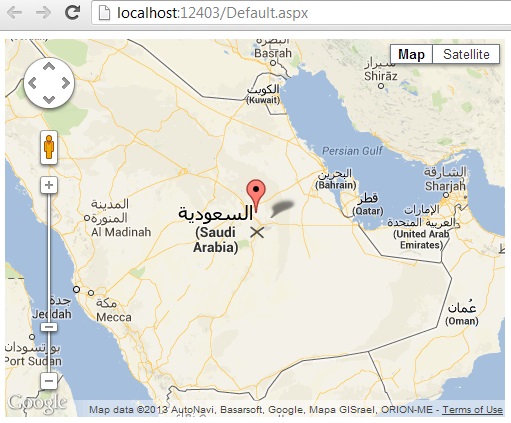
if you play this page, you will get draggable marker in your map:
if you want marker read-only, just change the property of marker:
draggable : false
Now, we want to show coordinates( longitude and latitude ) in text boxes. Just add the following texts inside html body:
<input id="txtLat" type="text" runat="server" />
<input id="txtLong" type="text" runat="server" />
and add the following listener to your script (inside initialize() method):
google.maps.event.addListener(marker, 'drag', function () {
document.getElementById("<% =txtLat.ClientID %>").value = marker.position.lat().toString();
document.getElementById("<% =txtLong.ClientID %>").value = marker.position.lng().toString();
});
Marker used to specify location using coordinates, called Longitude and Latitude.
to load marker in your map, just add the following script:
function initialize() {
// initial location of marker
var myCoordinates;
var marker;
var mapOptions = {
// 24, 47 is saudi arabia coordinates
center: new google.maps.LatLng(24, 47),
zoom: 5,
mapTypeId: google.maps.MapTypeId.ROADMAP
};
var map = new google.maps.Map(document.getElementById("googleMap"), mapOptions);
// initial location of marker
myCoordinates = new google.maps.LatLng(24, 47);
// set marker properties
marker = new google.maps.Marker({
position: myCoordinates,
map: map,
draggable: true
});
}
google.maps.event.addDomListener(window, 'load', initialize);
if you play this page, you will get draggable marker in your map:
if you want marker read-only, just change the property of marker:
draggable : false
Now, we want to show coordinates( longitude and latitude ) in text boxes. Just add the following texts inside html body:
<input id="txtLat" type="text" runat="server" />
<input id="txtLong" type="text" runat="server" />
and add the following listener to your script (inside initialize() method):
google.maps.event.addListener(marker, 'drag', function () {
document.getElementById("<% =txtLat.ClientID %>").value = marker.position.lat().toString();
document.getElementById("<% =txtLong.ClientID %>").value = marker.position.lng().toString();
});
then play your page, and try to move marker, you will get the following:
there is a lot of events of marker, one of them 'dragend', which will called after marker dragged, 'click' .. etc.
Wednesday, July 31, 2013
Dealing With Google Maps - ASP.NET - Part (1)
In this article, I'll show you how to load Google map in your page. Then, we will move to dealing with markers, how to customize it and apply data which retrieved from SQL database to Google map.
First Step:
create new web application, using visual studio, then register the following reference to web page, or to your master page.
<script type="text/javascript" src="https://maps.googleapis.com/maps/api/js?sensor=false"/>
Second Step:
just copy the following script and put it in your page in order to display Google map.
<script>
function initialize() { var mapOptions = {
// 28, 47 is saudi arabia coordinates
Third Step:
inside your page body, set the following div
<div id="googleMap" style="width:500px;height:380px;"></div>
then run the page, you will see the map in your page.
if you want to change map language to Arabic or another language, just pass Language code via query string like the following:
Second Step:
just copy the following script and put it in your page in order to display Google map.
<script>
function initialize() { var mapOptions = {
// 28, 47 is saudi arabia coordinates
center: new google.maps.LatLng(28, 47),
zoom: 5,
mapTypeId: google.maps.MapTypeId.ROADMAP
};
var map = new google.maps.Map(document.getElementById("googleMap"), mapOptions);
}
// this listener will call the method initialize() when page load
google.maps.event.addDomListener(window, 'load', initialize);
// this listener will call the method initialize() when page load
google.maps.event.addDomListener(window, 'load', initialize);
</script>
Third Step:
inside your page body, set the following div
<div id="googleMap" style="width:500px;height:380px;"></div>
then run the page, you will see the map in your page.
<script type="text/javascript" src="https://maps.googleapis.com/maps/api/js?sensor=false&Language=SA"/>
Wednesday, June 12, 2013
SQL Error: no process is on the other end of the pipe
If you get this error "no process is on the other end of the pipe" when you want to login to sql server management studio, just go to:
START -> ALL Programs -> Microsoft SQL Server (Version ) -> Configuration Tools -> SQL Server Configuration Manager
from SQL Server Network Configuration, just enable Named Pipe protocol as the following picture:
then, restart your SQL Server Services and it will work.
Thursday, June 6, 2013
How to install Anslysis Service, Tabular Mode
During the installation of SQL Server 2012, there is step to select your Analysis service mode. you can only select one of those modes, Tabular or Multidimensional mode, in specific SQL Server instance.
Note that, Tabular mode is not available in other SQL Server versions. Its only in 2012.
You can create new instance of SQL Server to install Analysis Service, Tabular Mode:
Enjoy Analyzing.
Note that, Tabular mode is not available in other SQL Server versions. Its only in 2012.
You can create new instance of SQL Server to install Analysis Service, Tabular Mode:
Enjoy Analyzing.
SSAS Tabular Mode Error: The Workspace Database Server 'localhost' Is Not Running In Tabular Mode
when you try to create new tabular model or multidimensional model using SSDT. You may face this error:
"the workspace database server 'localhost' is not running in tabular mode" when you try to connect to local host analysis server.
to solve this error, make sure you already install analysis service + make sure to connect with correct workspace server, if its not 'localhost'. Final solution, try to connect with localhost\SqlServerInstanceName because analysis service takes default sql instance name in installation step.
"the workspace database server 'localhost' is not running in tabular mode" when you try to connect to local host analysis server.
to solve this error, make sure you already install analysis service + make sure to connect with correct workspace server, if its not 'localhost'. Final solution, try to connect with localhost\SqlServerInstanceName because analysis service takes default sql instance name in installation step.
Subscribe to:
Posts (Atom)